It is currently Fri Aug 14, 2026 1:29 pm


All times are UTC - 5 hours [ DST ]


Post new topic Reply to topic  [ 6 posts ] 
Author Message
 Post subject: image improvement
PostPosted: Thu Sep 06, 2012 9:36 pm  (#1) 
Offline
GimpChat Member

Joined: Sep 02, 2012
Posts: 7
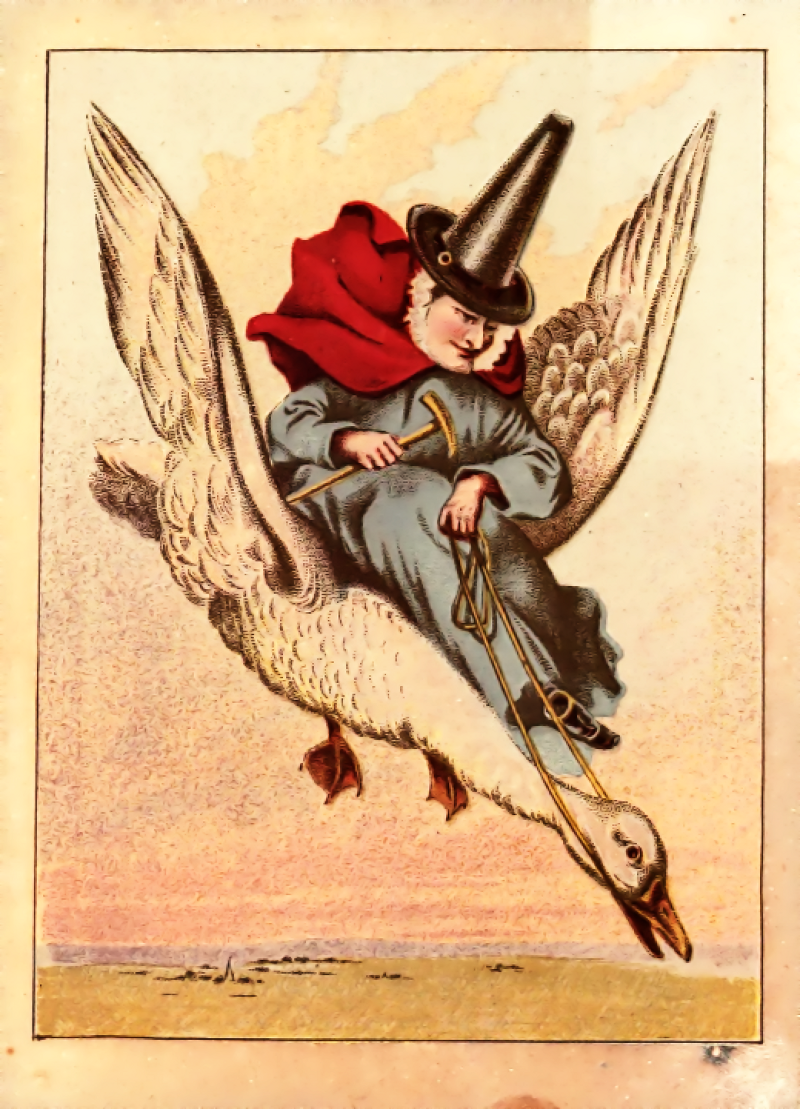
Here are two images of Mother Goose, from archive.org. The first is the original, the second has been cleaned up & brightened by oldscrapbookillustrations.com. I aspire to this kind of work. Can anyone suggest how it was done?
(I'm afraid I'm all toes, trying to figure out how to make attachments work. If they don't appear, I'll have to try again. Thanks for your patience.)


Attachments:
oldscrapbookillustrations.com  mg  sm.jpg
oldscrapbookillustrations.com mg sm.jpg [ 387.13 KiB | Viewed 2139 times ]
's nursery rhymes  a.jpg
's nursery rhymes a.jpg [ 240.04 KiB | Viewed 2139 times ]
Share on Facebook Share on Twitter Share on Orkut Share on Digg Share on MySpace Share on Delicious Share on Technorati
Top
 Post subject: Re: image improvement
PostPosted: Thu Sep 06, 2012 9:38 pm  (#2) 
Offline
GimpChat Member

Joined: Sep 02, 2012
Posts: 7
Oops! Obviously the images are reversed. The first is the improved version.


Top
 Post subject: Re: image improvement
PostPosted: Thu Sep 06, 2012 10:24 pm  (#3) 
Offline
GimpChat Member
User avatar

Joined: May 26, 2012
Posts: 342
Location: France
Well, I'm spotting white balance as a first step (located in tab:colors/auto>white balance) followed by a saturation boost (tab:colors/hue) after that it becomes unclear to me, I wonder if this result is achievable without drawing a single path.. Curves only ?

But all in all it may imply that you know where to head, color wise, and that's not a gimp filter ;)


Top
 Post subject: Re: image improvement
PostPosted: Fri Sep 07, 2012 8:36 am  (#4) 
Offline
GimpChat Member

Joined: Aug 05, 2011
Posts: 606
Location: limestone,ny
G'mic
Artistic/photoillustration
Enhancement/smooth(anisotropic)
duplicated layer
gaussian blur (5)
layer mode/overlay

Image


Top
 Post subject: Re: image improvement
PostPosted: Fri Sep 07, 2012 9:39 am  (#5) 
Offline
GimpChat Member
User avatar

Joined: Feb 14, 2012
Posts: 426
I would use unsharp mask and turn the amount up all the way. Then use threshold on it to make it black and white. Then I would go to channels pallet and right click a channel and choose channel to selection. Then Invert the selection and paste with forground color of black on a new layer. Then airbrush the color in on a layer beneith it like this. You could also blur the top black layer too to make it look smoother.

Image

I tried various funtions to brighten the color saturation but couldn't find a good procedure.

Alan


Top
 Post subject: Re: image improvement
PostPosted: Fri Sep 07, 2012 10:09 am  (#6) 
Offline
GimpChat Member
User avatar

Joined: Feb 14, 2012
Posts: 426
I figured out a way to do it using a few tips I got from another post a few days ago.

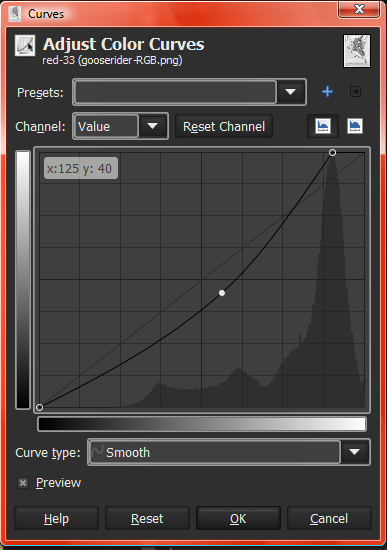
Go to [Colors] [Components] [Decompose] to RGB. And then use the Curves on each individual layer moving the top node to the left and curve the main line down like this:

Image
Doing this lightens up the yellows creating more of a white.

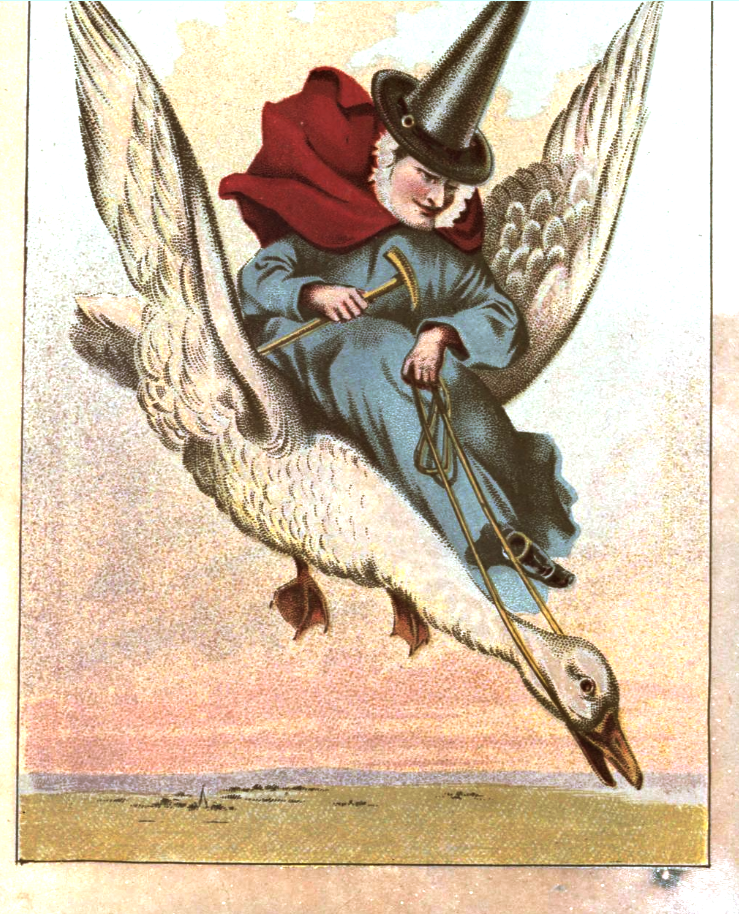
And then do [Colors] [Components] [Compose] and hit OK. Your image should look similar to this:

Image

Then you could adjust the Saturation to taste.

Alan


Top
Post new topic Reply to topic  [ 6 posts ] 

All times are UTC - 5 hours [ DST ]


* Login  


Powered by phpBB3 © phpBB Group