It is currently Mon Aug 10, 2026 9:07 pm


All times are UTC - 5 hours [ DST ]


Post new topic Reply to topic  [ 7 posts ] 
Author Message
 Post subject: Manipulating Paths with Custom Font Wobbler in Gimp 2.10
PostPosted: Thu Dec 18, 2025 9:53 am  (#1) 
Offline
GimpChat Member
User avatar

Joined: Aug 08, 2016
Posts: 2855
Location: East Midlands of England
A shout out for Tim (COME HOME SOON TIM) who developed the Wobble plug-in. Gimp needs his originality and creative skills.

There are some resources to accompany this post.

Attachment:
Resources.zip [858.99 KiB]
Downloaded 112 times


A pdf copy of the tutorial:

Attachment:
Wobble-Variation.pdf [2.25 MiB]
Downloaded 85 times


Sometimes it is desirable to introduce an element of randomness when creating images or parts of images and this is exactly the thing that the Wobble plug-in provides.

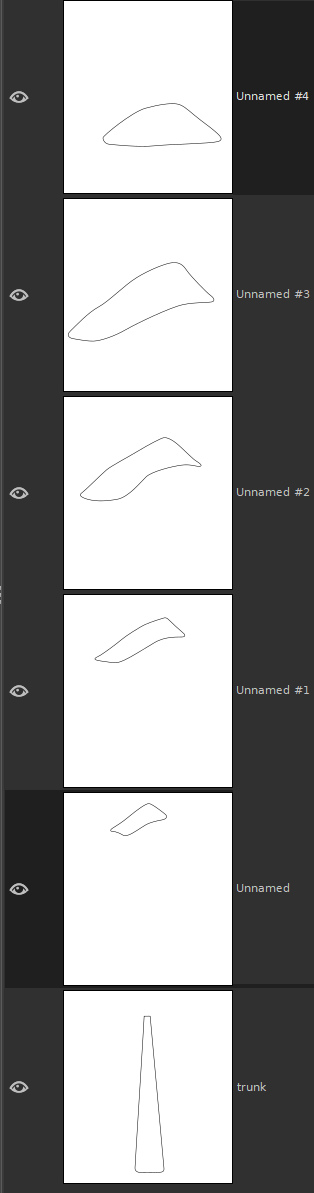
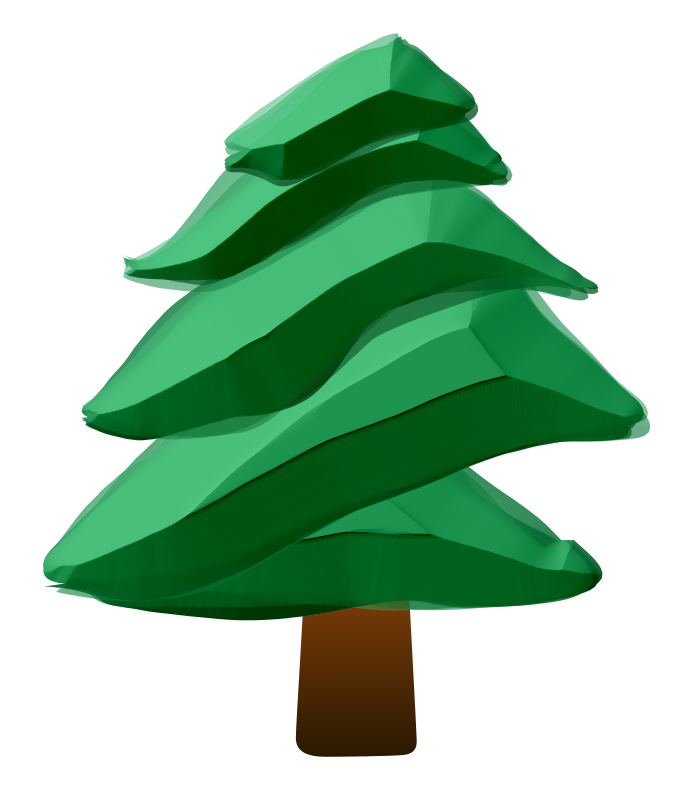
As an example, here are the set of six paths that I used to make a fir tree:

Image

And their default names...

Image

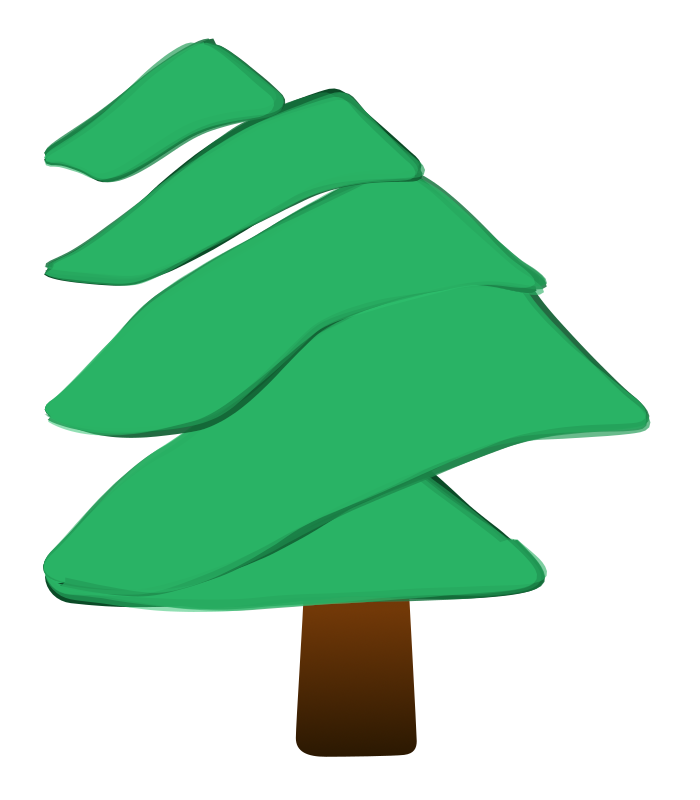
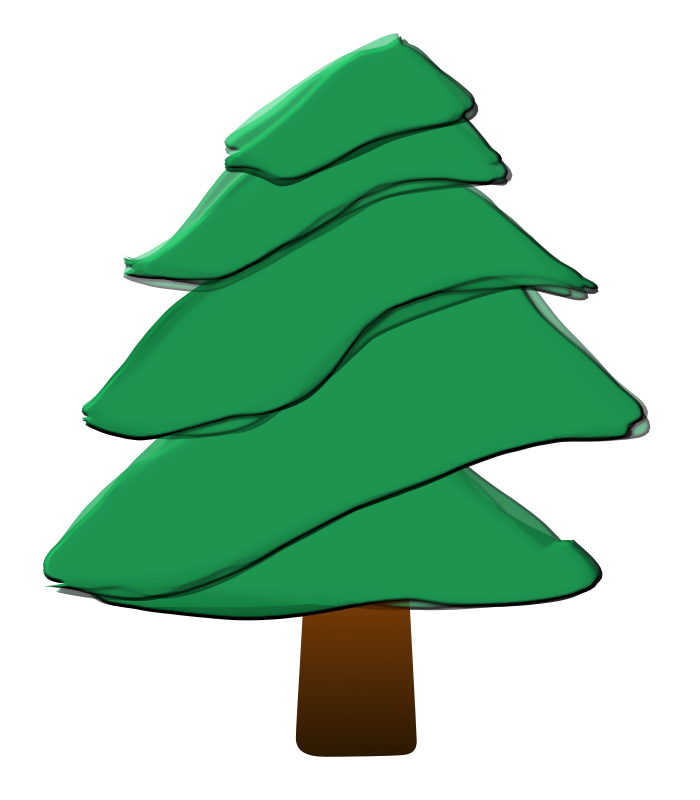
You can use each path in a number of ways using fill path from the edit menu or by turning each path into a selection and filling each region with colour or with the gradient tool such as in the example image below:

Image

Without editing the paths, the only way to add variation is to fill with different colours. This is perfectly do-able if a little tedious.

You can use a few custom font plug-ins to create the variations shown below much more quickly and efficiently than by doing it manually:
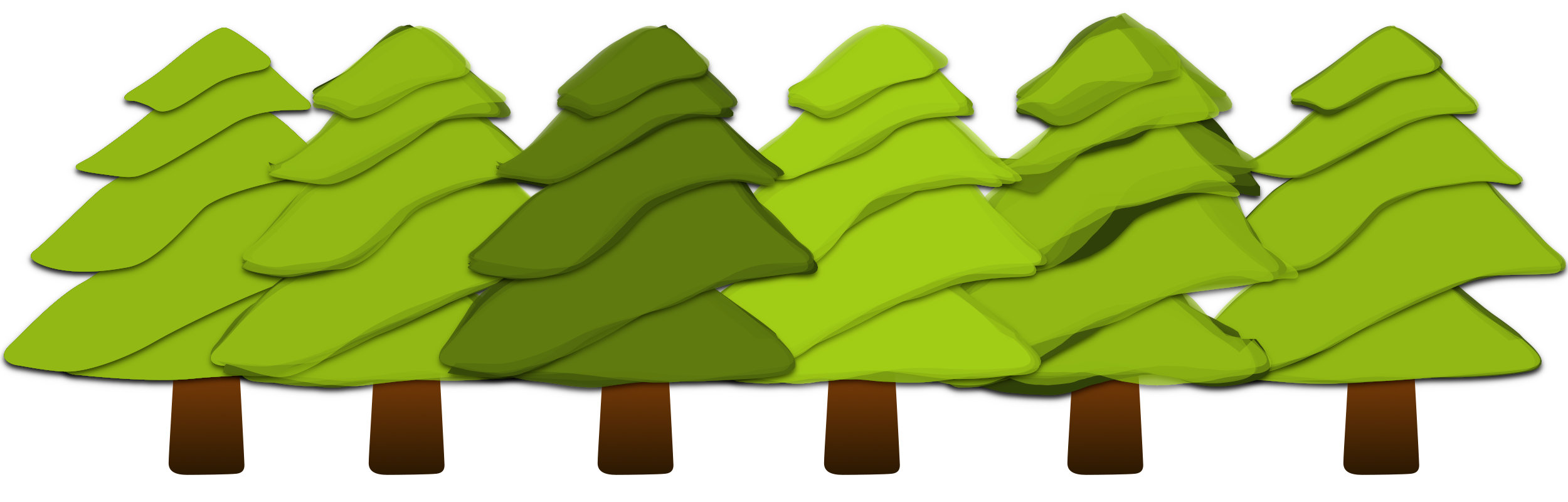
Image

1) Preparing the paths:

The first job to do is to change the path names so that the custom font plug-ins will work with the paths.

If you have more than a couple of paths to work with you can use the version of Custom Font Path Utilities from the Resources Folder to rename the paths as custom font paths.

Filters>>Custom Fonts>>Utility Tools>>Custom Font Path Utilities v0.06b
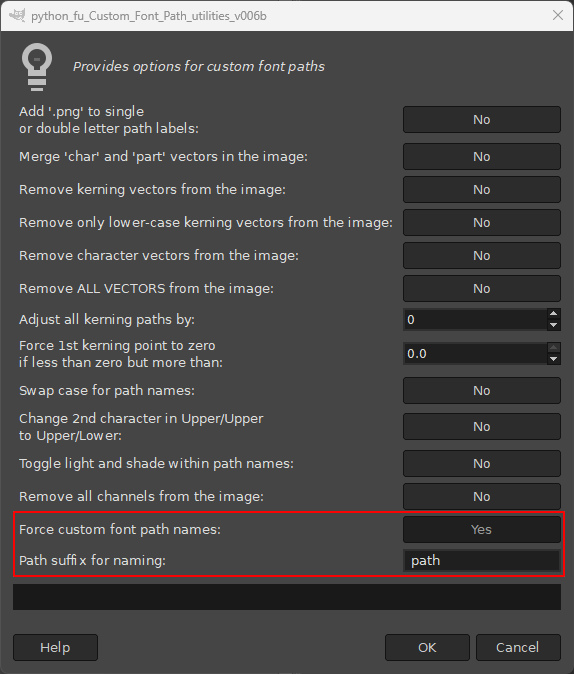
Image


Use the default suffix and hit 'OK'.

The output below shows the new names displayed in the Path Tool dock:

Image

Note: The last path has been renamed again because we do not want to apply custom font filters to this particular path.

2) Add variation with Custom Font Wobbler

Before applying the Wobbler plug-in select the colours that you want to apply to the paths that will used as the branches of the tree. Use the darker colour for the foreground colour.

Call up the plug-in:

Filters>>Custom Fonts>>Constructing Tools>>Custom Font Path Wobbler v0.2 Tabbed…

Increase the value for the number of paths to create on the first dialog tab and hit ‘OK’.

Image

The initial output reflects the filters use as a custom font tool i.e. all layers have a defined margin and have been moved to the origin - and only one (custom font) layer is made visible. The tree trunk is not a custom font layer and so remains unaltered by the filter.

Image

Make all the layers visible.

Image

Reposition the layers with the Move tool:

Image

You may want to add a drop shadow to define the foliage a little more…

Image

The images above used the default wobble factor value of 0.135 but we can increase this value to add more path variation.

Try using a value of 0.250…

Image

Now with a value of 0.500…

Image

You can also use the filter to skew the colours used within the current gradient to lighten or darken the tones of the foliage from the ‘Gradient options’ on the second tab of the dialog.
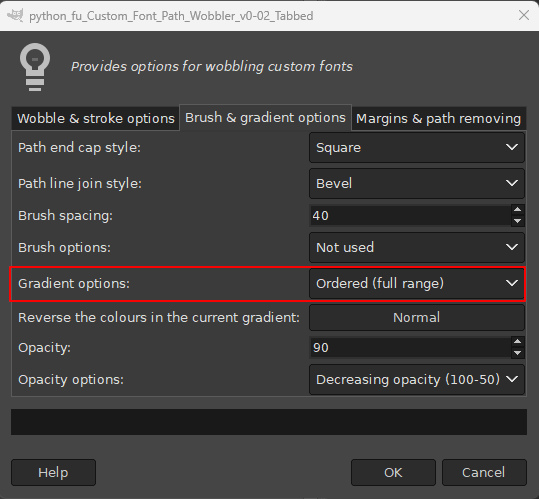
Image

The default setting uses colours from the full range so use the ‘Ordered (1st half)’ option to restrict the colour palette to the darker range (the current colour range is dark to light).

Image

Choosing ‘Ordered (2nd half)’ for the same option:

Image

3) Using other custom font filters

You can also apply other filters but first, since many custom font filters force the layers to move back to the image origin, use Custom Font Layer Utils v1.36b to force the layers to the image size.
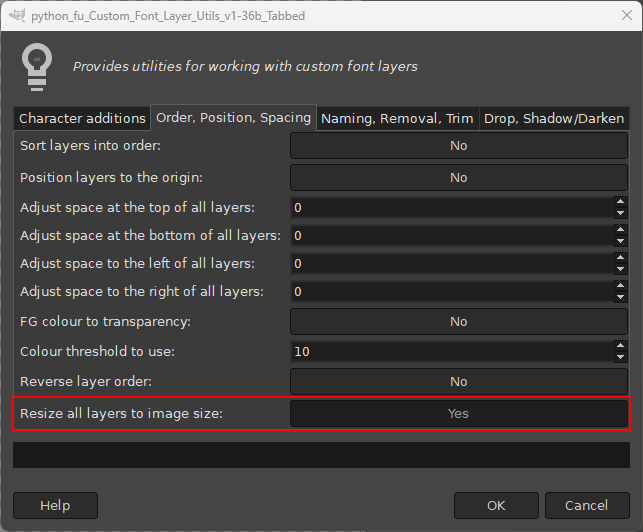
Image

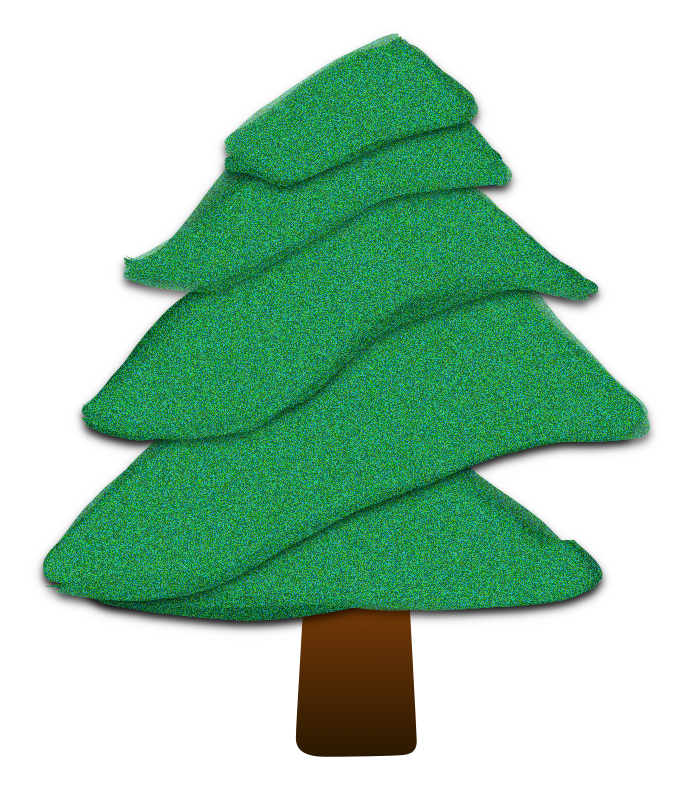
Once all the layers are maximised you can start to experiment with the decorative custom font filters. Here are some some examples that mainly also use drop shadow:

Using the Custom Font Artistic Pack (Cubism option):

Image

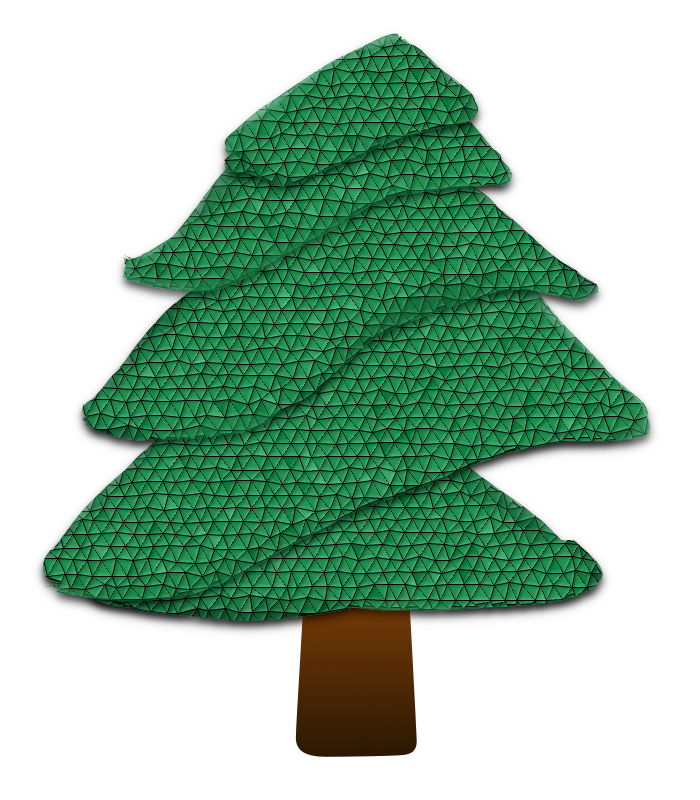
Using the Custom Font Artistic Pack (Glass Tile option):

Image

_________________
Image
"Let no one steal your dreams."
Paul Cookson

Custom Font Links
2.10 Tools
Character Paths
White Bases


Share on Facebook Share on Twitter Share on Orkut Share on Digg Share on MySpace Share on Delicious Share on Technorati
Top
 Post subject: Re: Manipulating Paths with Custom Font Wobbler in Gimp 2.10
PostPosted: Thu Dec 18, 2025 10:20 am  (#2) 
Offline
GimpChat Member
User avatar

Joined: Aug 08, 2016
Posts: 2855
Location: East Midlands of England
Using the Custom Font Distortion Packs (Shift option):

Image

Using the Custom Font Distortion Packs (Mosaic option):

Image

Using the Custom Font Effects Only Filter (Bevel option):

Image

Using the Custom Font Effects Only Filter (Emboss option):

Image

Using the Custom Font Metallic Effects:

Image

Using the Custom Font Noise filter:

Image

Using the Custom Font Perspex filter:

Image

Using the Custom Font Sheen & Shine filter:

Image

Using the Custom Font Outer Glow filter:

Image

Using the Custom Font Lighting Effects filter:

Image

And there you have it - almost enough variations to create your own forest (well at least a wood) – all thanks to Tim’s Wobble plug-in.

The zipped downloadable Resources folders contain the updated Custom Font Layer Utils and Path Utility Plug-ins together with some fir tree resources. You can download the other custom font plug-ins by following the Tools link in my signature.
Suggestions for further play

Plants, flowers and leaves

Image

_________________
Image
"Let no one steal your dreams."
Paul Cookson

Custom Font Links
2.10 Tools
Character Paths
White Bases


Top
 Post subject: Re: Manipulating Paths with Custom Font Wobbler in Gimp 2.10
PostPosted: Sat Dec 20, 2025 12:38 pm  (#3) 
Offline
GimpChat Member
User avatar

Joined: Mar 01, 2014
Posts: 14119
Location: Spain, Aragón
Thanks a lot Skinnyhouse. I did a first try, but I must practice it much more. :hehe


Attachments:
Wobble-Variation-try 1.7z [2.91 MiB]
Downloaded 75 times
Wobble-Variation-try 1-Issa.jpg
Wobble-Variation-try 1-Issa.jpg [ 421.78 KiB | Viewed 4881 times ]

_________________
Image

Gimp 2.10.30(samj) portable _ OS Windows 10 Home_ 64bits
Don’t be afraid to start over. It’s a new chance to rebuild what you want.
Top
 Post subject: Re: Manipulating Paths with Custom Font Wobbler in Gimp 2.10
PostPosted: Sat Dec 20, 2025 3:53 pm  (#4) 
Offline
Global Moderator
User avatar

Joined: May 16, 2010
Posts: 16154
Love that effect. Almost looks like a painting. :)

_________________
Image


Top
 Post subject: Re: Manipulating Paths with Custom Font Wobbler in Gimp 2.10
PostPosted: Sun Dec 21, 2025 4:45 am  (#5) 
Offline
GimpChat Member
User avatar

Joined: Aug 08, 2016
Posts: 2855
Location: East Midlands of England
I think your tree looks sweet Issa.
Love the colours too.
:bigthup

_________________
Image
"Let no one steal your dreams."
Paul Cookson

Custom Font Links
2.10 Tools
Character Paths
White Bases


Top
 Post subject: Re: Manipulating Paths with Custom Font Wobbler in Gimp 2.10
PostPosted: Sun Dec 21, 2025 4:55 am  (#6) 
Offline
GimpChat Member
User avatar

Joined: Aug 08, 2016
Posts: 2855
Location: East Midlands of England
My better results generally use the following settings:
Stick with the default gradient settings for applying colour.
Use a (very) dark foreground colour and a (very) light background colour.
Use a wobble factor of between 0.150 and 0.350
Use at least 5 for the number of paths to create.

Another example - without any extra custom font effects:

Image

Base file - very, very simple.

Attachment:
Pressi.xcf [5.42 KiB]
Downloaded 62 times

_________________
Image
"Let no one steal your dreams."
Paul Cookson

Custom Font Links
2.10 Tools
Character Paths
White Bases


Top
 Post subject: Re: Manipulating Paths with Custom Font Wobbler in Gimp 2.10
PostPosted: Sun Dec 21, 2025 9:10 am  (#7) 
Offline
GimpChat Member
User avatar

Joined: Mar 01, 2014
Posts: 14119
Location: Spain, Aragón
Thank you so much, Skinnyhouse. With your help my outcome is going a bit better. :)


Attachments:
Outcome_Leaf_Issa.xcf [529.36 KiB]
Downloaded 72 times
Outcome-Leaf_Issa.jpg
Outcome-Leaf_Issa.jpg [ 154.31 KiB | Viewed 4833 times ]

_________________
Image

Gimp 2.10.30(samj) portable _ OS Windows 10 Home_ 64bits
Don’t be afraid to start over. It’s a new chance to rebuild what you want.
Top
Post new topic Reply to topic  [ 7 posts ] 

All times are UTC - 5 hours [ DST ]


* Login  


Powered by phpBB3 © phpBB Group