It is currently Wed Oct 28, 2026 6:07 pm


All times are UTC - 5 hours [ DST ]


Post new topic Reply to topic  [ 5 posts ] 
Author Message
 Post subject: Drop Shadow Coloring on GIMP
PostPosted: Mon Dec 29, 2014 2:08 pm  (#1) 
Offline
New Member

Joined: Dec 29, 2014
Posts: 1


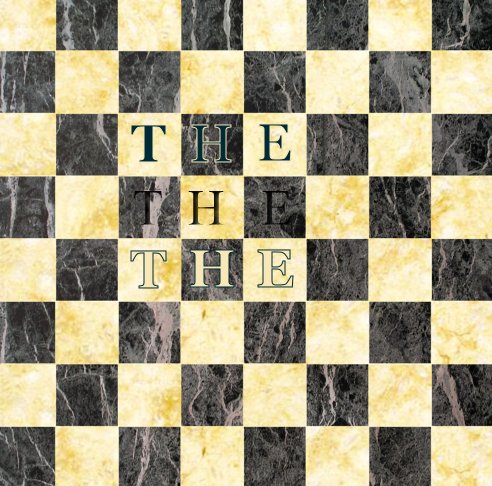
So recently I learned how to make engraved text with the filter 'Drop shadow' and the text is on a chess board so you have one letter on black and another on a white sqaure, and I couldn't figure out how to change the color of each letter. I attached a picture of the image I was working on, I want to make the 'T' a light white color and the 'E' the same color so that they stand out rather then being the same color as the sqaure. If anyone knows how or can help me then your input would be much appreciated.
Thanks! :)

-Tony


Attachments:
Screen Shot 2014-12-29 at 1.07.32 PM.png
Screen Shot 2014-12-29 at 1.07.32 PM.png [ 454.95 KiB | Viewed 3044 times ]
Share on Facebook Share on Twitter Share on Orkut Share on Digg Share on MySpace Share on Delicious Share on Technorati
Top
 Post subject: Re: Drop Shadow Coloring on GIMP
PostPosted: Mon Dec 29, 2014 3:18 pm  (#2) 
Offline
Administrator
User avatar

Joined: Aug 10, 2012
Posts: 14250
Location: Native to NYC living in Arizona, Gimp 2.8 - 3.0, Win 11 PC.
Tony Gunk wrote:


So recently I learned how to make engraved text with the filter 'Drop shadow' and the text is on a chess board so you have one letter on black and another on a white sqaure, and I couldn't figure out how to change the color of each letter. I attached a picture of the image I was working on, I want to make the 'T' a light white color and the 'E' the same color so that they stand out rather then being the same color as the sqaure. If anyone knows how or can help me then your input would be much appreciated.
Thanks! :)

-Tony

You could select the letters you wish to lighten, using the Free Selection Tool. Then use Brightness and Contrast to lighten the letters within the selections. Moving the Brightness slider to the right. Until you see the lightness you're looking for.

You could also add an Inner Bevel to all the text. Making sure to change the Black of the bevel colors to a dark Gray instead of Black and then select the letters as explained above to lighten the selected text.

There's many ways to accomplish what you after and this is only one way you could go about doing it.

Here is an example image of what it looks like, when what is described above is applied.
The font used in this example image was Times New Roman, with a drop-shadow added.
I also added your image to the example as a comparison.
ImageImage

_________________
Image
"A wise man learns more from a foolish question than a fool can learn from a wise answer"
Image


Last edited by Wallace on Mon Dec 29, 2014 3:50 pm, edited 2 times in total.

Top
 Post subject: Re: Drop Shadow Coloring on GIMP
PostPosted: Mon Dec 29, 2014 3:19 pm  (#3) 
Offline
GimpChat Member
User avatar

Joined: Jan 20, 2013
Posts: 14835
Location: roma, italy
in your image there are two problems:
1-selecting by color each character is not easy because the black is not pure and uniform black
2-the characters are not at a correct distance one from the others
Thus my suggestion is to OVERRIDE each character with a similar one and with the color you like.
So I did the following in preparation of your task:
1-identifying the character set (I found one similar, but not equal: Garamond)
2-preparing 3 layers one for each character and positioning the characters so that they override the existing ones
I attach here 2 different xcf, the first one (workfile) you should use for accomplishing your modifications
the second one is an example just to show the result (I choose random colors, only to show)
The two files are also repeated in png, so that you can see them immediately
Attachment:
Attachment:
workfile.xcf [714.73 KiB]
Downloaded 195 times

Attachment:
example.xcf [723.13 KiB]
Downloaded 190 times


next post for the png version

_________________

_________________
"Where am I ?"


Top
 Post subject: Re: Drop Shadow Coloring on GIMP
PostPosted: Mon Dec 29, 2014 3:21 pm  (#4) 
Offline
GimpChat Member
User avatar

Joined: Jan 20, 2013
Posts: 14835
Location: roma, italy
Attachment:
workfile.png
workfile.png [ 493.91 KiB | Viewed 2982 times ]

Attachment:
example.png
example.png [ 493.65 KiB | Viewed 2982 times ]

_________________
"Where am I ?"


Top
 Post subject: Re: Drop Shadow Coloring on GIMP
PostPosted: Mon Dec 29, 2014 3:35 pm  (#5) 
Offline
GimpChat Member
User avatar

Joined: Nov 16, 2011
Posts: 5127
Location: Metro Vancouver, BC
Tony Gunk wrote:


So recently I learned how to make engraved text with the filter 'Drop shadow' and the text is on a chess board so you have one letter on black and another on a white sqaure, and I couldn't figure out how to change the color of each letter. I attached a picture of the image I was working on, I want to make the 'T' a light white color and the 'E' the same color so that they stand out rather then being the same color as the sqaure. If anyone knows how or can help me then your input would be much appreciated.
Thanks! :)

-Tony
I wouldn't use a drop shadow, Stroke (thin outline) the letter with a complementary color, black text, white outline.
Paths and Text
Stroking a Path

To make it nicer I would use, Border Average to get a median color from the image palette. Use the Border Average color for text, stroke with a complementary (opposite) color.

Here's an experiment of opposing styles with 1px stroke.
Image

Font choice is important.

_________________
Image
Gimp 2.8.18, Linux, median user
Gimp Chat Tutorials Index
Spirit Bear (Kermode)


Top
Post new topic Reply to topic  [ 5 posts ] 

All times are UTC - 5 hours [ DST ]


* Login  


Powered by phpBB3 © phpBB Group