It is currently Wed Aug 12, 2026 8:27 am


All times are UTC - 5 hours [ DST ]


Post new topic Reply to topic  [ 78 posts ]  Go to page Previous  1, 2, 3, 4  Next
Author Message
 Post subject: Re: Combining two images
PostPosted: Sat Oct 14, 2017 4:38 pm  (#41) 
Offline
Administrator
User avatar

Joined: Aug 10, 2012
Posts: 14151
Location: Native to NYC living in Arizona, Gimp 2.8 - 3.0, Win 11 PC.
Using Windows Explorer.
As you can see from the image below.

If you have GIMP installed.
The folder .gimp-2.8 will show under,
C:\Users\Your User Name\.gimp-2.8.


Image

_________________
Image
"A wise man learns more from a foolish question than a fool can learn from a wise answer"
Image


Top
 Post subject: Re: Combining two images
PostPosted: Sun Oct 15, 2017 1:05 pm  (#42) 
Offline
GimpChat Member

Joined: Jun 21, 2016
Posts: 60
Well Wallace. I feel a complete idiot and I apologize profusely.
I bounce back and forth between four computers and I was searching for C:\Users\BC\.gimp-2.8 on the wrong one! I was startled from sleep at two in the morning when I realized my mistake. I have to stop smoking that funny tobacco the Jamaican Rasta man sells me.

Anyway, I entered C:\Users\BC\.gimp-2.8 in the search field and it comes up .gimp-2.8 I assume that's right. Now how do I change the name? Highlighting and typing in a new name doesn't work. Right clicking brings up a menu but nothing about changing the file name. Do I have to go into Properties to do it?
Once again, I apologize for being so thick,
Bry


Top
 Post subject: Re: Combining two images
PostPosted: Sun Oct 15, 2017 1:54 pm  (#43) 
Offline
Administrator
User avatar

Joined: Aug 10, 2012
Posts: 14151
Location: Native to NYC living in Arizona, Gimp 2.8 - 3.0, Win 11 PC.
bcripps wrote:
Well Wallace. I feel a complete idiot and I apologize profusely.
I bounce back and forth between four computers and I was searching for C:\Users\BC\.gimp-2.8 on the wrong one! I was startled from sleep at two in the morning when I realized my mistake. I have to stop smoking that funny tobacco the Jamaican Rasta man sells me.

Anyway, I entered C:\Users\BC\.gimp-2.8 in the search field and it comes up .gimp-2.8 I assume that's right. Now how do I change the name? Highlighting and typing in a new name doesn't work. Right clicking brings up a menu but nothing about changing the file name. Do I have to go into Properties to do it?
Once again, I apologize for being so thick,
Bry

To change the name of the folder.
You simply rename the .gimp-2.8 folder,
as you would any other folder within Windows.

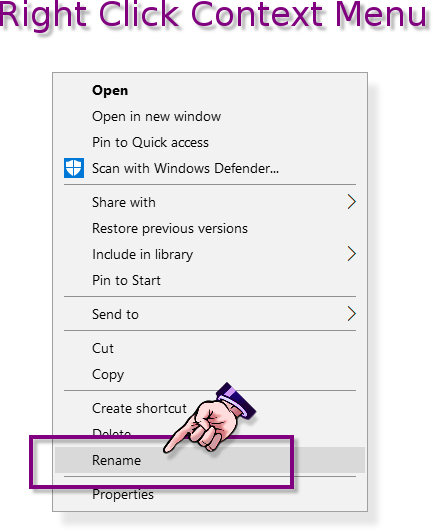
i.e. Right click the folder,
select Rename from the context menu/pop-up menu .


Image

In the image below.

Image

You can see,
that I've renamed my GIMP User Profile folder to .gimp-2.8_old and then launched GIMP.
When I launched GIMP after renaming the folder,
Gimp creates a new .gimp-2.8 folder in the same location.
Which will be the new .gimp-2.8 GIMP User Profile folder.

*...*...*

Doing this may not solve the issue.
However it's worth a shot.

There may be other issues,
which I already touched on in previous posts to this thread.

Also,
I had asked a question about this issue,
that you have not yet answered.

Is this the only image file,
that presents this issue?

_________________
Image
"A wise man learns more from a foolish question than a fool can learn from a wise answer"
Image


Top
 Post subject: Re: Combining two images
PostPosted: Sun Oct 15, 2017 3:15 pm  (#44) 
Offline
GimpChat Member

Joined: Jun 21, 2016
Posts: 60
I'll look again when I get back to the boat but I'm pretty sure the Rename option is not listed when I right click.
And this problem is not exclusive to the downed plane photo in post 9.
Thanks Wallace... I'll get back to you tomorrow.
Bry


Top
 Post subject: Re: Combining two images
PostPosted: Mon Oct 16, 2017 12:59 pm  (#45) 
Offline
GimpChat Member

Joined: Jun 21, 2016
Posts: 60
Hey Wallace... Nope, no Rename selection is provided. I took a screen shot but my wallpaper is a .rtf file and apparently not allowed on Gimp Chat.

Anyway my selections from the menu are: Open, Scan, Restore previous versions, Include in library, Send to, and, Open folder location. That's it.

Any ideas. Not even a delete option.
Bry


Top
 Post subject: Re: Combining two images
PostPosted: Mon Oct 16, 2017 1:04 pm  (#46) 
Offline
Administrator
User avatar

Joined: Aug 10, 2012
Posts: 14151
Location: Native to NYC living in Arizona, Gimp 2.8 - 3.0, Win 11 PC.
bcripps wrote:
Hey Wallace... Nope, no Rename selection is provided. I took a screen shot but my wallpaper is a .rtf file and apparently not allowed on Gimp Chat.

Anyway my selections from the menu are: Open, Scan, Restore previous versions, Include in library, Send to, and, Open folder location. That's it.

Any ideas. Not even a delete option.
Bry


Windows screenshots are saved as .png images.
Why is your screenshot an .rtf file?

You must not be using Windows Explored.
Can you go to My Computer or Computer and click on the C Drive?

Image

You need to be able to find your .gimp-2.8 folder.
Do you know how to find folder within Windows Explorer?

You need to open the C: Drive,
Then open the Users folder and then open Your User Named folder.
Inside this folder will be the .gimp-2.8 folder.

If you can't navigate to your .gimp-2.8 folder within Windows Explorer.
You won't be able to do this.


Image

_________________
Image
"A wise man learns more from a foolish question than a fool can learn from a wise answer"
Image


Top
 Post subject: Re: Combining two images
PostPosted: Mon Oct 16, 2017 2:09 pm  (#47) 
Offline
GimpChat Member

Joined: Jun 21, 2016
Posts: 60
Thanks Wallace... put your instructions on a stick and will take them home with me and give it a try. On the right computer this time!
Back at you tomorrow, you lucky guy...
Bry


Top
 Post subject: Re: Combining two images
PostPosted: Mon Oct 16, 2017 2:12 pm  (#48) 
Offline
Administrator
User avatar

Joined: Aug 10, 2012
Posts: 14151
Location: Native to NYC living in Arizona, Gimp 2.8 - 3.0, Win 11 PC.
bcripps wrote:
Thanks Wallace... put your instructions on a stick and will take them home with me and give it a try. On the right computer this time!
Back at you tomorrow, you lucky guy...
Bry

I'll believe it when I see it.
:hehe

_________________
Image
"A wise man learns more from a foolish question than a fool can learn from a wise answer"
Image


Top
 Post subject: Re: Combining two images
PostPosted: Tue Oct 17, 2017 1:17 pm  (#49) 
Offline
GimpChat Member

Joined: Jun 21, 2016
Posts: 60
I'm back!
Okay your instructions worked, sort of.
Basically I now have .gimp-2.8 folder AND .gimp-2.8_old folder, the latter added by me as per your instructions. I deleted .gimp-2.8 folder but when I start GIMP, it comes back. I moved it to my desktop and deleted it from there and emptied my Recycle Bin. It still comes back.

Bottom line: Still can't save my enhanced .jpg files.

Bry


Top
 Post subject: Re: Combining two images
PostPosted: Tue Oct 17, 2017 1:31 pm  (#50) 
Offline
Administrator
User avatar

Joined: Aug 10, 2012
Posts: 14151
Location: Native to NYC living in Arizona, Gimp 2.8 - 3.0, Win 11 PC.
bcripps wrote:
I'm back!
Okay your instructions worked, sort of.
Basically I now have .gimp-2.8 folder AND .gimp-2.8_old folder, the latter added by me as per your instructions. I deleted .gimp-2.8 folder but when I start GIMP, it comes back. I moved it to my desktop and deleted it from there and emptied my Recycle Bin. It still comes back.

Bottom line: Still can't save my enhanced .jpg files.

Bry

If you rename or delete your current .gimp-2.8 folder.
GIMP will create a new one,
as I've already stated.

The .gimp-2.8 folder in this location,
is your GIMP User Profile folder.
If there isn't a .gimp-2.8 folder in this location.
GIMP will always create one.

Doing this can often help in correcting User Profile issues,
however this doesn't always fix some issues.

There seems to be other issues with your machine,
when it comes to exporting files from GIMP.

You my need to find out,
how much free space the disk has,
in the location you're trying to export the file to.

If you're exporting a file to a drive,
which is full,
or has limited space.
This could explain why you can't export the file from GIMP,
to this location.

You have to compare the file size you wish to export,
with the available space on the given drive you wish to export the file to.

The Rule of Thumb for Free Space on Mechanical Hard Drives.
Is 15%- 20% of the drive.


If you have less then this,
you won’t be able to save new files to that drive,
or download anything,
including Windows Updates.

_________________
Image
"A wise man learns more from a foolish question than a fool can learn from a wise answer"
Image


Top
 Post subject: Re: Combining two images
PostPosted: Tue Oct 17, 2017 2:07 pm  (#51) 
Offline
GimpChat Member

Joined: Jun 21, 2016
Posts: 60
I'm just trying to save to my desktop.
I have used 94GB of 356GB on my hard drive.
Bry


Top
 Post subject: Re: Combining two images
PostPosted: Tue Oct 17, 2017 2:12 pm  (#52) 
Offline
Administrator
User avatar

Joined: Aug 10, 2012
Posts: 14151
Location: Native to NYC living in Arizona, Gimp 2.8 - 3.0, Win 11 PC.
bcripps wrote:
I'm just trying to save to my desktop.
I have used 94GB of 356GB on my hard drive.
Bry

Try exporting the file to a different drive,
such as a flash drive/usb stick,
that you know has ample space for your file.

_________________
Image
"A wise man learns more from a foolish question than a fool can learn from a wise answer"
Image


Top
 Post subject: Re: Combining two images
PostPosted: Tue Oct 17, 2017 2:55 pm  (#53) 
Offline
GimpChat Member

Joined: Jun 21, 2016
Posts: 60
Gotcha... let me try. See you tomorrow.


Top
 Post subject: Re: Combining two images
PostPosted: Tue Oct 17, 2017 3:00 pm  (#54) 
Offline
Administrator
User avatar

Joined: Aug 10, 2012
Posts: 14151
Location: Native to NYC living in Arizona, Gimp 2.8 - 3.0, Win 11 PC.
bcripps wrote:
Gotcha... let me try. See you tomorrow.

Alright,
Good luck.

_________________
Image
"A wise man learns more from a foolish question than a fool can learn from a wise answer"
Image


Top
 Post subject: Re: Combining two images
PostPosted: Wed Oct 18, 2017 12:49 pm  (#55) 
Offline
GimpChat Member

Joined: Jun 21, 2016
Posts: 60
Okay Wallace, did I do this right?

Inserted memory stick with 58GB of free space available...
Opened my photo in GIMP and did a few test adjustments to the photo...
Opened Export As...
Deleted file name and extension...
Retyped same file name and extension...
Under Places, selected Removable Disk (E)…
Clicked on Export...
Failed!

What am I doing wrong?
GIMP has worked flawlessly for over a year. What’s changed?

Bry


Top
 Post subject: Re: Combining two images
PostPosted: Wed Oct 18, 2017 1:10 pm  (#56) 
Offline
Administrator
User avatar

Joined: Aug 10, 2012
Posts: 14151
Location: Native to NYC living in Arizona, Gimp 2.8 - 3.0, Win 11 PC.
bcripps wrote:
Okay Wallace, did I do this right?

Inserted memory stick with 58GB of free space available...
Opened my photo in GIMP and did a few test adjustments to the photo...
Opened Export As...
Deleted file name and extension...
Retyped same file name and extension...
Under Places, selected Removable Disk (E)…
Clicked on Export...
Failed!

What am I doing wrong?
GIMP has worked flawlessly for over a year. What’s changed?

Bry

Yes you've done it correctly.

I've asked another Gimp Chat member,
to try and give a bit of assistance with this issue.

Short of doing a complete reinstall of GIMP.
I'm stumped.

_________________
Image
"A wise man learns more from a foolish question than a fool can learn from a wise answer"
Image


Top
 Post subject: Re: Combining two images
PostPosted: Wed Oct 18, 2017 1:16 pm  (#57) 
Offline
GimpChat Member

Joined: Jun 21, 2016
Posts: 60
Thanks. I've got the latest version of the GIMP sitting on my desktop. I figure delete the present version. Delete anything in Profiles. And then do a new install.

But I'll wait to hear from you.

Many, many thanks, Wallace.... you're a brick! :)
Bry


Top
 Post subject: Re: Combining two images
PostPosted: Wed Oct 18, 2017 2:21 pm  (#58) 
Offline
Script Coder
User avatar

Joined: May 07, 2014
Posts: 4527
Location: Canada
I can't think of any reason why it would fail.

I would try to export to computer main hard drive first. Just a guess. If that is successful then you always copy the exported file to the removable drive afterwards.

Because my removable disks sometimes appear when it connects right other times it's not seen by computer at least that's how it is for me with my removable SD drive.

_________________
TinT


Top
 Post subject: Re: Combining two images
PostPosted: Wed Oct 18, 2017 2:49 pm  (#59) 
Offline
GimpChat Member

Joined: Jun 21, 2016
Posts: 60
Hey trandoductin; how are things in beautiful Victoria? Bit of a chill in the air by now?

Not being a gimper-geek, could you spell out exactly what you want me to do when you say “export to the computer main hard drive” ...I assume I start from Export As, but not sure of anything anymore.

Reloading a new version of GIMP sounds easier but everyone seems determined to repair the existing program. I guess there's a reason but it escapes me.

I'm going back to the boat now, dinnertime here in the DR... but I'll hook up again tomorrow.

Thanks for stepping in...
Bry


Top
 Post subject: Re: Combining two images
PostPosted: Wed Oct 18, 2017 3:00 pm  (#60) 
Offline
Script Coder
User avatar

Joined: May 07, 2014
Posts: 4527
Location: Canada
Hey yeah it's chilly right now.

Export As
then instead of selecting a removable hard drive.
Select your Local Disk (C:)
or Select Desktop
then type in whateverfilename.jpg or whateverfilename.png and click Export.
once that's successful.
You can always open Window Explorer and browse to your whateverfilename.jpg or .png and then drag the file onto your Removable disk.

_________________
TinT


Top
Post new topic Reply to topic  [ 78 posts ]  Go to page Previous  1, 2, 3, 4  Next

All times are UTC - 5 hours [ DST ]


* Login  


Powered by phpBB3 © phpBB Group