Attachment:
 Custom_Font_Layer_Names.zip [2.82 KiB]
Downloaded 163 times
Custom_Font_Layer_Names.zip [2.82 KiB]
Downloaded 163 times
I find that MareroQ’s Gimp Custom Font tool, Font_to_Layers script, is very useful when taking an existing font and using all the layers created as a template to work on and produce a new font.
Sometimes, however, I like to build a custom font from scratch and so I developed a plugin, called Custom_Font_Layer_Names, more suited to my workflow. It may be of use to other font customisers.
Attachment:
 GimpLayerNames_Dialog.jpg [ 68.29 KiB | Viewed 2569 times ]
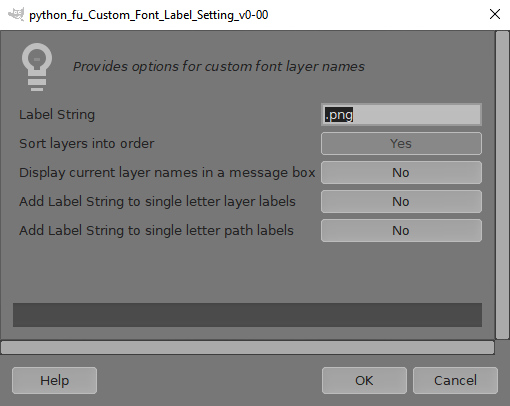
The plugin dialog has four options which work with a custom font xcf file:
Option 1 re-orders the existing letter layers (more on this later);
Option 2 displays a list of the character layers as characters (ie space.png is shown as space) in a message box. You can easily check for missing layers or see which characters are available in a font without scrolling through all the layers.
Option 3 adds .png to all the single character layer names in the file. (I am too lazy to type all those extra .pngs when creating fonts from scratch so I leave them as a single character and use the filter to add the file extension letters for me.
Option 4 adds .png to all the single character path names that exist in the file.
More detail on the rational behind Option 1.
When creating a custom font from scratch I like to work on letter families that share common attributes of shape like the letters E and F or like punctuation marks such as full stops (periods) and colons. After creating the letters/characters I tend to re-order the layers so that I can check and make sure that none are (unintentionally) missing. The filter sorts the layers into a logical order which can then be checked with Option 2.
So my workflow goes:
Create characters in related attribute groups with single character layer names.
Create any paths with single character layer names, if required.
Run the filter with Option 3 and then Option 4.
Run the filter with Option 1 to reorder all the existing layers.
Finally run the filter with Option 2 to double check that there are no missing layers.
Option 1 layer order:
space.png should be the top layer – it is so easy to leave this layer out – so I placed it here.
Upper case letters (A-Z) if defined.
Lower case letters (a-z) if defined.
Numbers (0-9) if defined.
Basic maths characters if defined.
Punctuation characters if defined.
Any other keyboard characters defined.
Special characters (Pound Sterling sign, Copyright Sign, Registered Trademark sign) if defined.
 Login
Login Register
 Tweets
 FAQ
FAQ Advanced Search