Graechan wrote:
I still don't understand how to use an image as a mask. Is there a written tutorial somewhere as video tuts move to quick except for those where they hover over the buttons. My aged and damaged brain works slow.
Are you asking if I could make my video into a text tutorial?
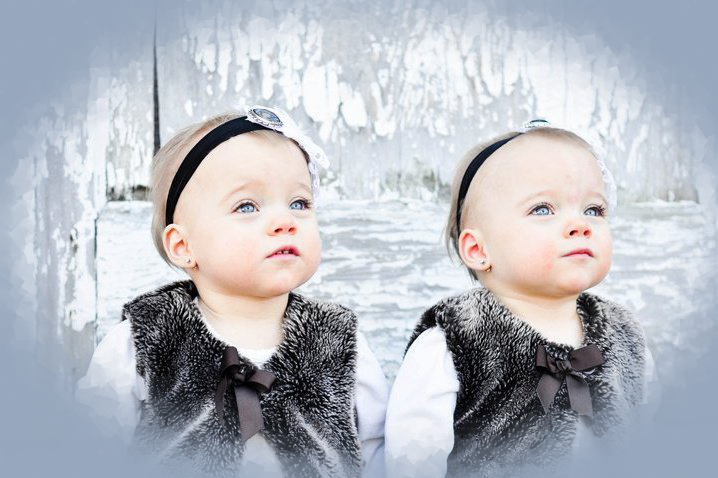
1. Open your image and establish a center guide on your image for your selection (you can use either rectangle or ellipse selections, doesn't matter)
2. Create a new layer, move it to the bottom, flood fill it with any color of your choice, or use a pattern or background image, the choice is yours.
3. Create a new transparent layer, move it to the top, change layer mode to screen so you can see the image layer under it, flood fill that layer with black. (We're creating the selection mask on this layer).
4. Create your selection, and center it on the top "mask" layer filled with black, flood fill the new selection with white. Select - None.
5. Use Gaussian blur of 75px on the mask layer.
6. Filters - Artistic - Cubism: tile size 6, saturation 3.2, use background should be checked.
7. Edit - Cut the mask layer
8. On the image layer, right click in dialog, add mask layer, choose default settings. Edit - Paste. Anchor the floating selection.
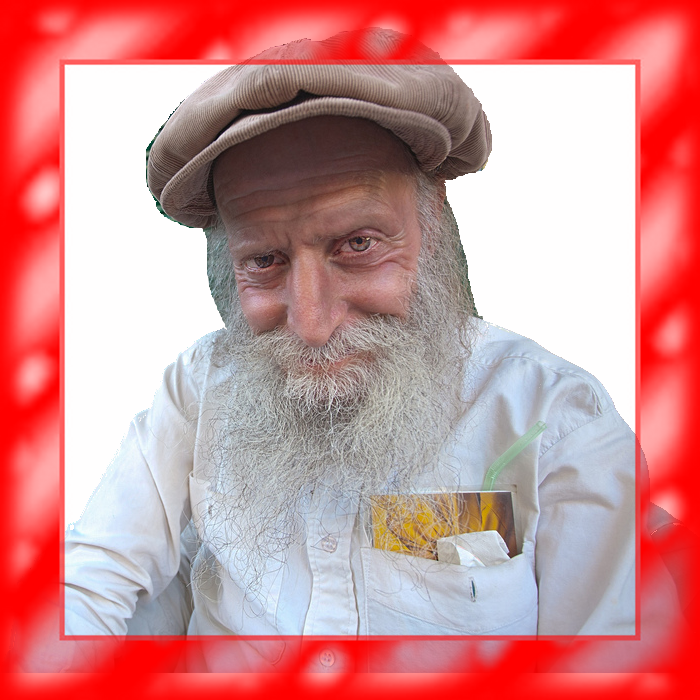
9. Your done. But you can now replace the bottom background layer with ANYTHING you want simply by replacing it with a pattern, another image, or different color.
_________________
"In order to attain the impossible, one must attempt the absurd."
~ Miguel de Cervantes
 Login
Login Register
 Tweets
 FAQ
FAQ Advanced Search