Handyandy180: Welcome to GimpChat! That sounds like a fun project, I hope you get back and tell us after quiz night if you tricked them or not

!
Here is my try. I tried to keep the process at beginner level but it's hard - I honestly don't know how to get a good result using just filters or something.
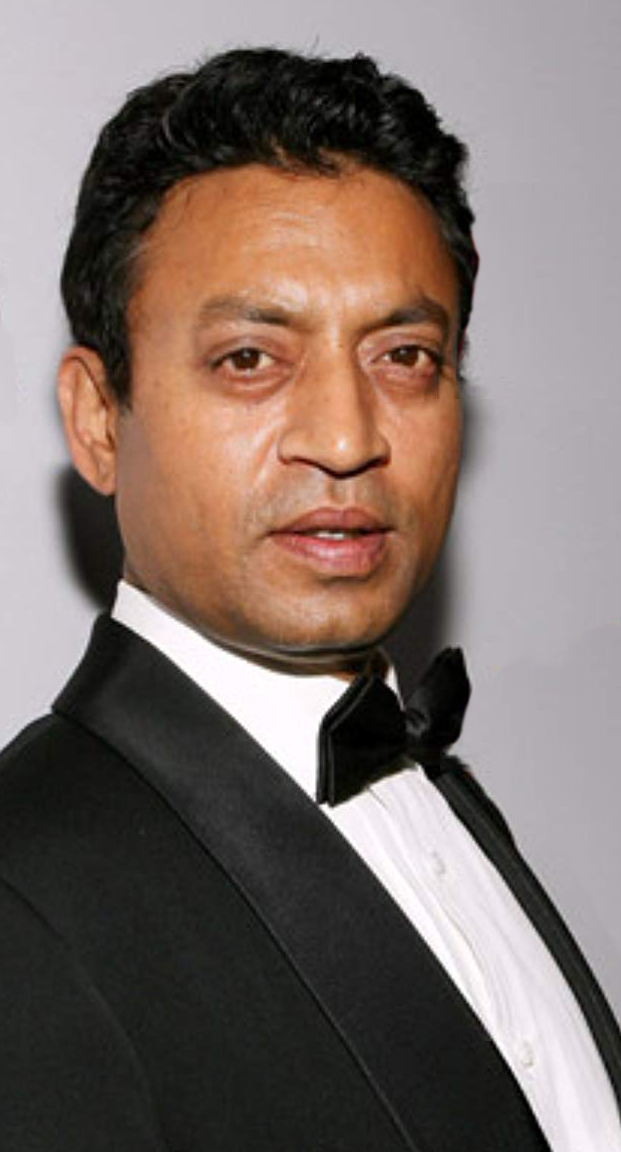
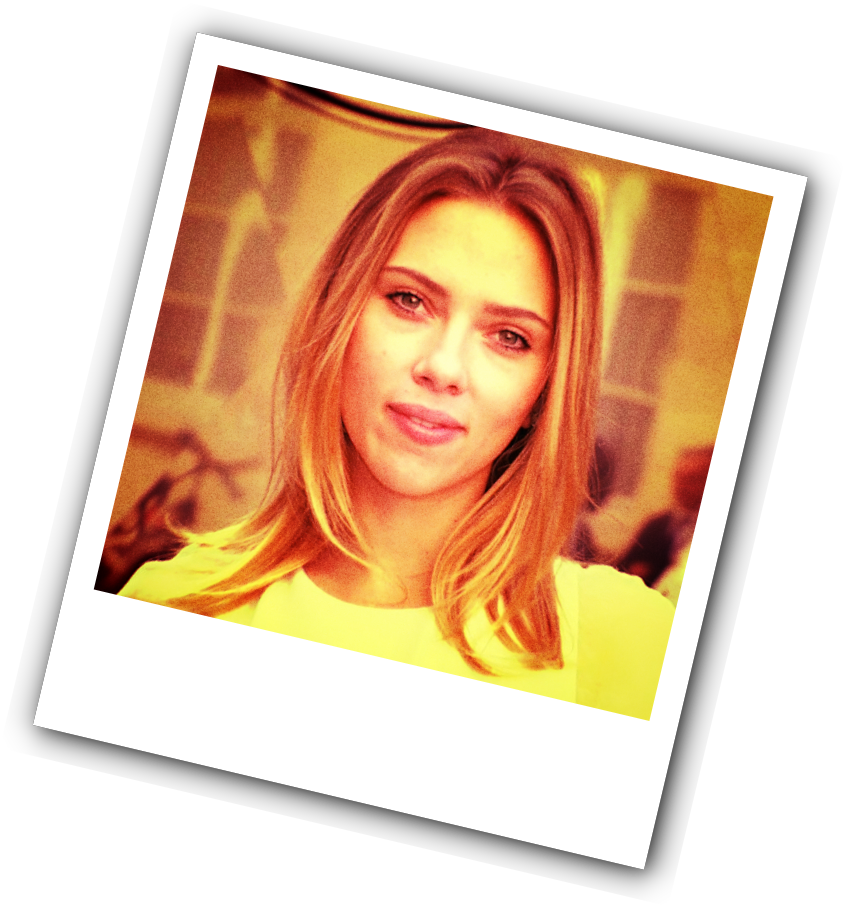
Photo I started with:
Result:
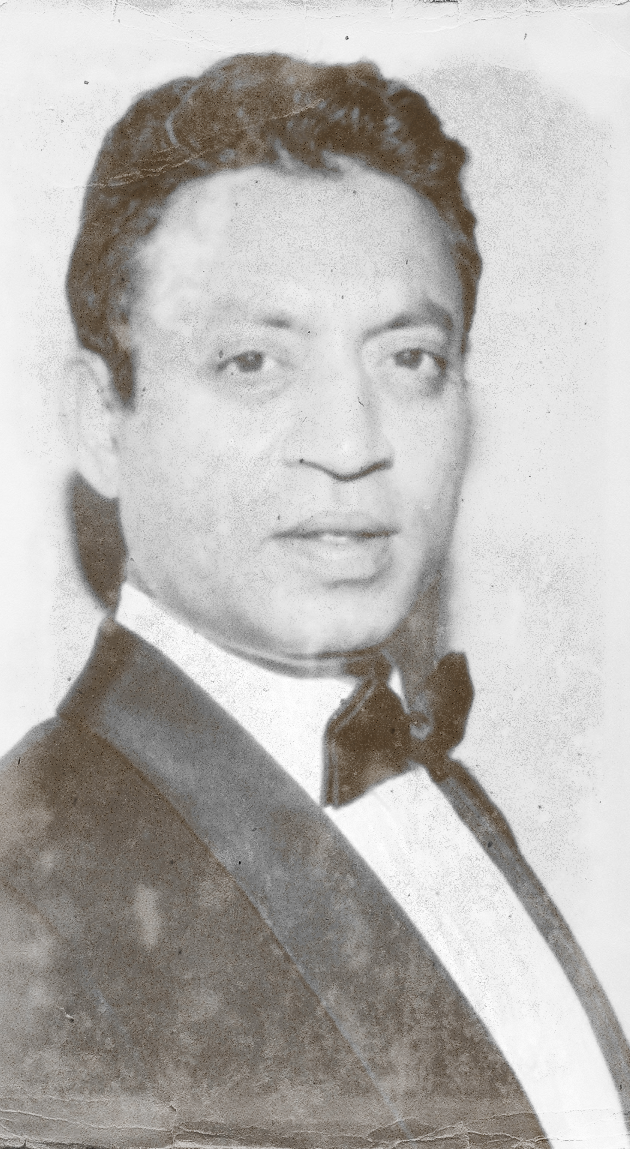
Process:
1. Desaturate by luminosity.
2. Duplicate layer. Set layer mode of new layer to "screen".
3. On new layer, add layer mask. Select "greyscale copy of layer" in the menu, and then go Colour -> Invert. This brightens just the darker tones in the photo, so you get a lower contrast in a controlled way. Shortcut by just going Colour - Brightness/Contrast, pull up brightness a little and pull down contrast a little. Easier, but the result won't be as good.
4. Duplicate layer. Set layer mode of duplicate to "dissolve". Pull down opacity to around 25% or according to taste.
5. Go Layer -> New from visible.
6.Delete the layer you made in step 4, but keep layer from step 5. Now you can play with opacity on step 5 layer to control the intensity of the dissolve effect.
7. Merge down layers so you have just one, then duplicate that layer twice.
8. On one duplicate layer, go Artistic - Oilify (default settings. Control effect by pulling down opacity on layer.
9. On the other duplicate layer, gaussian blur at maximum 20%. Control effect by pulling down opacity on blurred layer.
10. When you're happy with blurring and softening of details, you can merge all layers so you have just one again.
11. Go Decor -> Old photo and run filter with border set to 0. The defaut setting gives you the result in a new image. Paste that image in as a new layer. Set layer mode to "colour".
12. Merge layers. Duplicate layer once.
13. On the new layer, go Artistic -> Softglow. Control effect of the filter by pulling down opacity on layer. When you're happy with the effect, merge down.
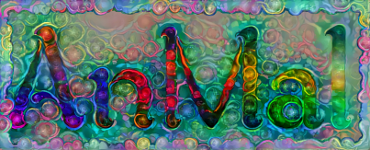
14. Use
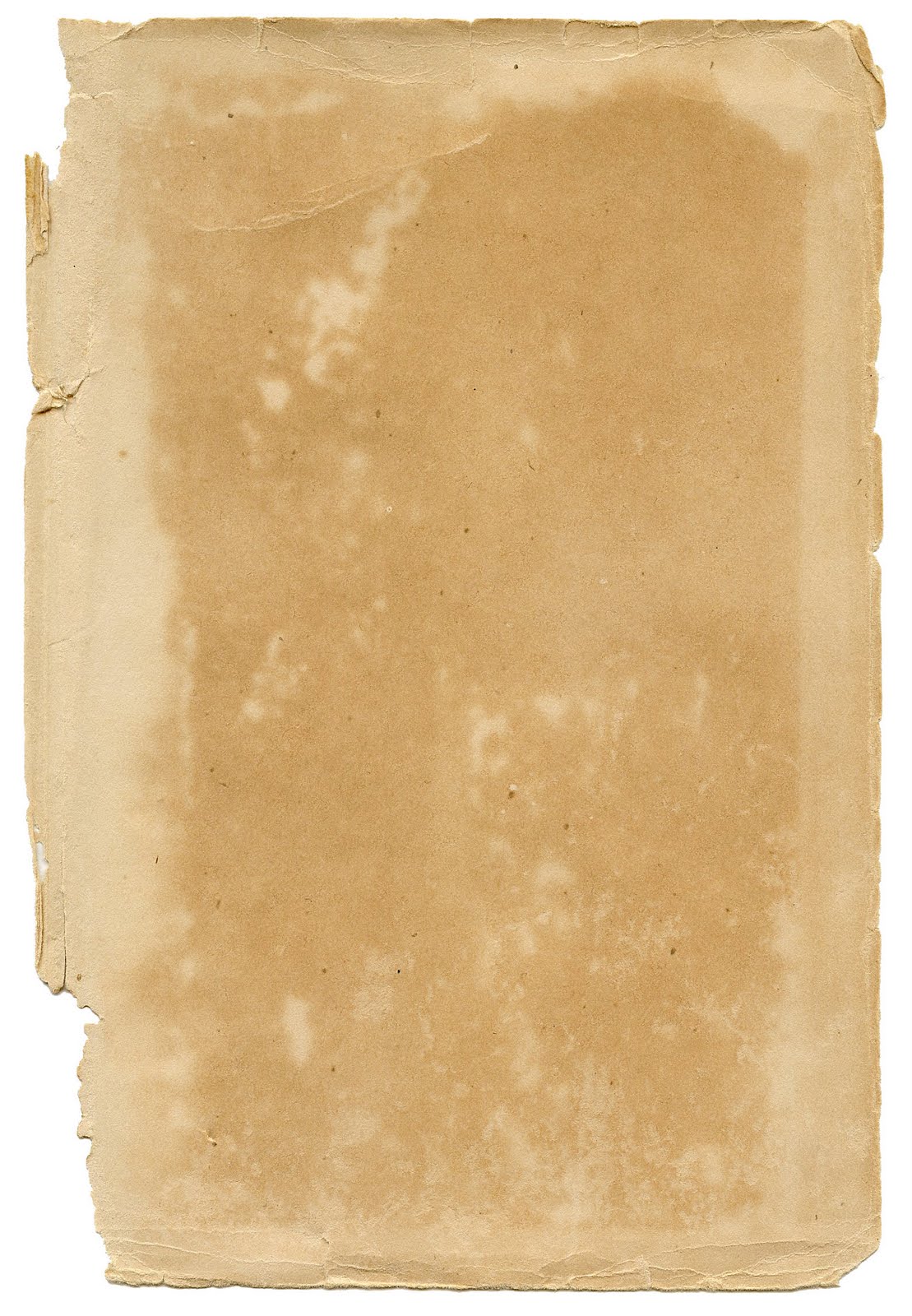
this image or similar by pasting it in as a new layer.
15. Desaturate the new layer by luminosity and set layer mode to "overlay". Finally done!
Maina_Ayuh & Nidhogg: Well done on those images!
.
 Login
Login Register
 Tweets
 FAQ
FAQ Advanced Search









 and copy the process steps to try it out later.